When connecting PowerApps to Azure SQL Database, many teams default to SQL Server authentication with a shared username and password. This creates significant security and credential-rotation headaches.
In this video tutorial, I demonstrate how to configure Azure SQL and PowerApps to authenticate seamlessly using Microsoft Entra ID (formerly Azure AD), leveraging user identity and token-based security.
Benefits of Azure AD Auth over SQL Auth
- No Shared Passwords: Eliminates hardcoded or shared database administrator passwords.
- Role-Based Access Control: Grants granular database permissions directly to Entra security groups.
- Audit Logging: Azure SQL audit logs record the exact Entra user executing queries, rather than a generic service account.
Setup Checklist Covered in Video
- 1. Set the Azure Active Directory Admin on the Azure SQL Logical Server.
- 2. Create contained database users mapped to Entra ID users or groups using T-SQL (`CREATE USER [group_name] FROM EXTERNAL PROVIDER`).
- 3. Grant `SELECT`, `INSERT`, `UPDATE` permissions on target schema tables.
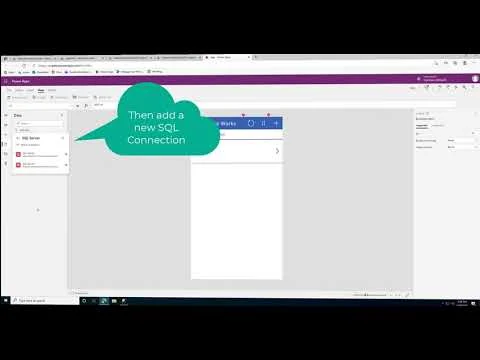
- 4. Configure the PowerApps SQL connector with Azure AD integrated authentication.
Watch the 4-minute video above for the exact SQL scripts and PowerApps connector setup.